Interactive Mode
- Prompt layout
- Slash commands
- Interactive submenus
- Session commands
- Keyboard shortcuts
- Completion and history
- Quoting and arguments
- Examples
Run wum with no arguments to open the interactive shell:
wum
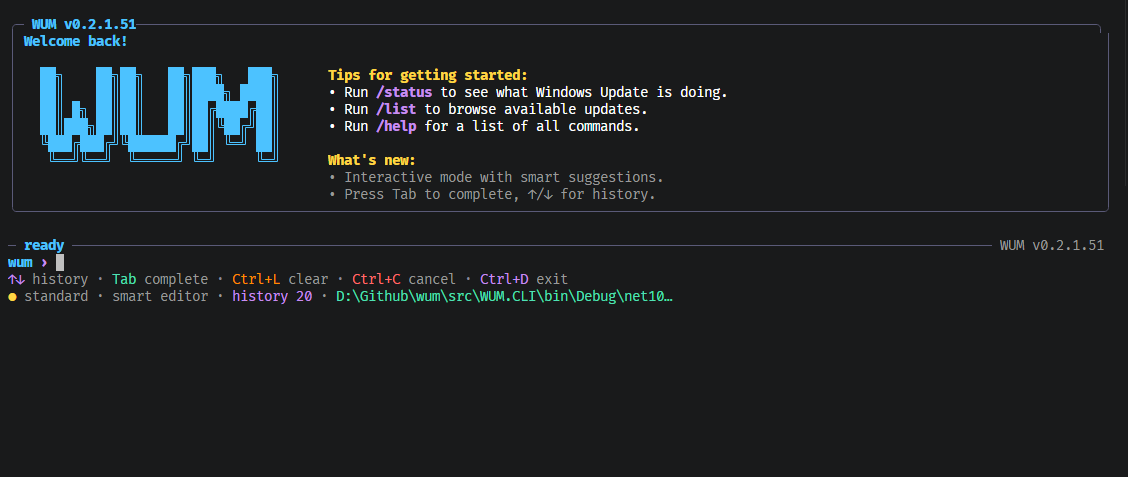
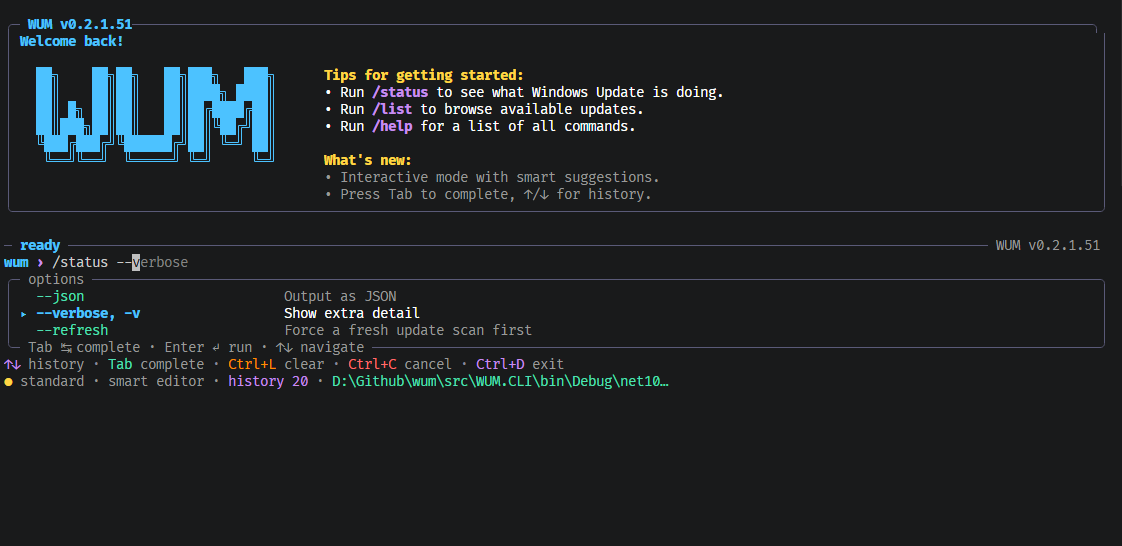
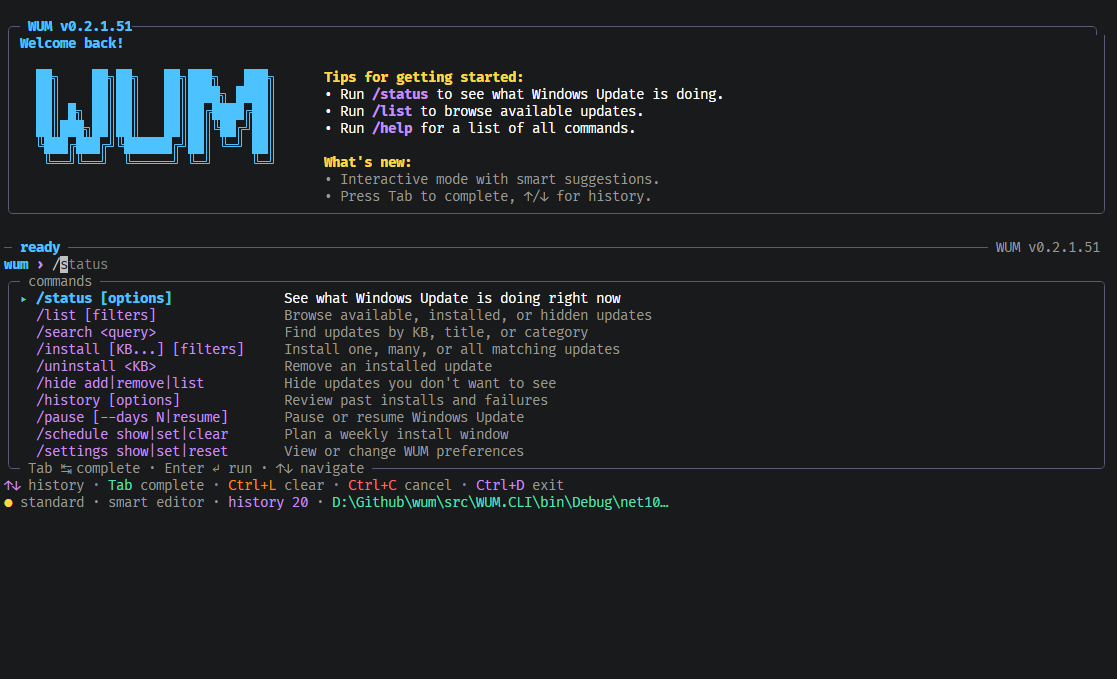
Enter slash-prefixed commands directly at the prompt. Read-only commands run as a standard user. Commands that modify Windows Update still require Administrator rights and show elevation guidance in the interactive session.
For every slash command, argument, option, and subcommand, see Interactive Command Reference. Each slash command also has its own Interactive Mode page in the left nav.
Prompt layout
The smart prompt keeps the active command area together:
─ ready ─────────────────────────────────────────
wum ›
↑↓ history · Tab complete · Ctrl+L clear · Ctrl+C cancel · Ctrl+D exit
● admin · smart editor · history 4 · D:\Github\wum
After a command completes, WUM prints the command result, a ✓ done or ✗ failed footer, then returns to ready without pausing for another key.
Slash commands
Use /commands in the shell to browse these groups.
| Group | Commands |
|---|---|
| Look around | /status, /list, /search, /history |
| Take action | /install, /uninstall, /hide |
| Stay in control | /pause, /schedule, /settings, /reboot, /diagnose, /update |
| This session | /commands, /help, /keys, /clear, /version, /info, /exit |
See Interactive Command Reference for the full slash command matrix and per-command interactive pages.
Interactive submenus
| Page | Detail |
|---|---|
| Command Reference | Slash command matrix and command groups |
/status through /update |
One page per slash command |
| Session Commands | /commands, /help, /keys, /clear, /version, /info, /exit |
| Shortcuts | Keyboard shortcuts, completion, and history |
Session commands
| Command | Effect |
|---|---|
/commands |
Show the grouped command palette |
/help or /? |
Show interactive help |
/help <command> |
Show help for one command, for example /help list |
/keys |
Show keyboard shortcuts |
/clear |
Clear the screen and terminal scrollback, then redraw the welcome panel |
/version |
Print WUM version |
/info |
Show build and developer information |
/exit, /quit, exit, quit |
Leave interactive mode |
Keyboard shortcuts
| Key | Effect |
|---|---|
Tab |
Complete the current suggestion |
Shift+Tab |
Cycle suggestions backward |
Enter |
Run the command, or complete a selected bare command suggestion |
Right Arrow at end of line |
Accept ghost-text completion |
Up / Down |
Browse history at an empty prompt, or move through suggestions |
Ctrl+P / Ctrl+N |
Browse history backward / forward |
Ctrl+A / Ctrl+E |
Move to start / end of line |
Ctrl+U / Ctrl+K |
Delete before / after cursor |
Ctrl+W |
Delete previous word |
Backspace / Delete |
Delete previous / next character |
Esc |
Clear the current line |
Ctrl+L |
Clear screen and scrollback, then redraw interactive mode |
Ctrl+C |
First press cancels the current line; second press exits |
Ctrl+D on an empty prompt |
Exit interactive mode |
Completion and history
Typing / opens command suggestions. Typing a command plus a space opens option or subcommand suggestions where WUM knows them:
/list --s
can complete to:
/list --security
History stores recent non-empty, non-exit commands in:
%LOCALAPPDATA%\WUM\interactive-history.txt
WUM keeps the newest 200 entries and skips duplicate consecutive commands.
Quoting and arguments
Interactive mode preserves quoted arguments and passes them to the command parser:
/search "security update"
/settings set active-hours "9-18"
Single quotes, double quotes, and backslash escapes inside quotes are supported.
Examples
/status
/status --refresh
/list --installed
/list --security --json
/search KB5034441
/install --all --dry-run
/install KB5034441 --no-reboot
/schedule show
/settings show
/diagnose --json
Next: Command Reference → · Session Commands → · Shortcuts →